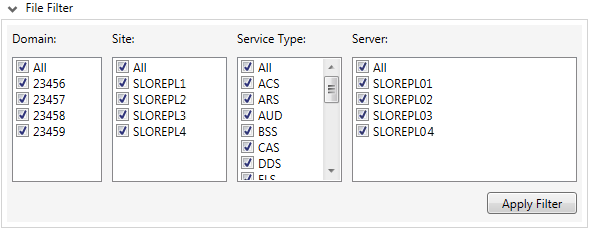
The Config File Manager contains several options for filtering, hiding, and grouping keywords in the grid.
For more information, see the following subsections below:
Use the File Filter to limit the configuration files being viewed and the keywords presented in the gird.
You can further filter keywords by using the check boxes under the grid.
| Column | Description |
|---|---|
|
Keyword |
All keywords in all retrieved service configuration files. Note: If the Config File Manager loads a service configuration file that contains the same keyword enabled multiple times, the utility will display the first instance of the keyword and its value, and all other instances will be disabled. When saving the service configuration file, the duplicate keywords will be automatically disabled, although the disabling will not be appear as a change in the UI or in the final validation screen. |
|
Category |
The keyword category. |
|
Summary |
The Summary column displays information about the keywords in the row.
where x is the number of unique values and y is the total number of services. Both <Disabled> and <N/A> are considered unique values. |
|
Special Action Buttons |
Certain keywords support special action. A chooser button is available in this column to allow special action to be taken for each of these keywords. Click on each Special Action button to open the configuration dialog box.
See Editing Special Action Keywords for more information about editing these special keywords. |
|
[Local]Service.Site or [Domain]Service.Site Cells |
Each cell shows one of the following options:
|

|
|
|

